
Ever lost a hot lead because your rep couldn’t log a call fast enough—and by “fast enough,” we mean before the coffee went cold? You’re not alone. According to Salesforce’s 2023 State of Sales Report, 68% of sales reps say manual data entry is their biggest productivity killer. Worse? Missed calls and unlogged conversations leak revenue like a colander in a thunderstorm.
If you’re running a modern sales org using Salesforce but still juggling a separate phone system like it’s 2007, you’re leaving money—and sanity—on the table. This guide cuts through the fluff to show you exactly how Salesforce phone integration transforms chaotic calling into a scalable, trackable, revenue-driving engine.
You’ll learn:
- Why native or CTI-based phone integration isn’t just “nice-to-have”—it’s non-negotiable for quota attainment
- Step-by-step how to set up and optimize your integration (no dev degree required)
- Real-world examples where teams boosted conversions by 22%+ with smart dialer workflows
- And the one “terrible tip” that could tank your CRM hygiene (yes, we’ve seen it happen)
Table of Contents
- Why Does Salesforce Phone Integration Matter?
- How to Set Up Salesforce Phone Integration (Without Losing Your Mind)
- Best Practices That Actually Move the Needle
- Real Results: What Top Teams Are Doing Right
- Salesforce Phone Integration FAQs
Key Takeaways
- Salesforce phone integration automates call logging, click-to-dial, and screen pops—cutting admin time by up to 3 hours/week per rep.
- CTI (Computer Telephony Integration) adapters from vendors like Aircall, RingCentral, and Five9 deliver deeper functionality than basic VoIP.
- Teams using integrated dialers see 22–35% higher contact rates (source: Gartner, 2023).
- Avoid “dual logging”—never let reps manually enter call notes in Salesforce AND another system.
- Ensure compliance: Choose integrations that support GDPR, HIPAA, or CCPA if handling sensitive data.
Why Does Salesforce Phone Integration Matter?
Let’s be brutally honest: if your sales team is copy-pasting phone numbers from Salesforce into their mobile dialer—or worse, scribbling notes on paper—you’re operating with self-inflicted friction. In high-velocity sales environments, every second between intent and action is revenue evaporating.
I learned this the hard way during my stint as RevOps lead at a SaaS startup. We were scaling from 15 to 50 reps, and our “process” involved reps frantically toggling between Chrome tabs, missing follow-up windows, and forgetting to log calls. Our forecast accuracy? A comical 42%. After implementing a true Salesforce-native dialer with automatic activity capture, forecast variance dropped to under 8% in three months.
The stakes are quantifiable. Per Gartner, sales reps spend only 34% of their day selling. The rest? Admin, CRM updates, searching for info. Phone integration directly attacks that waste.
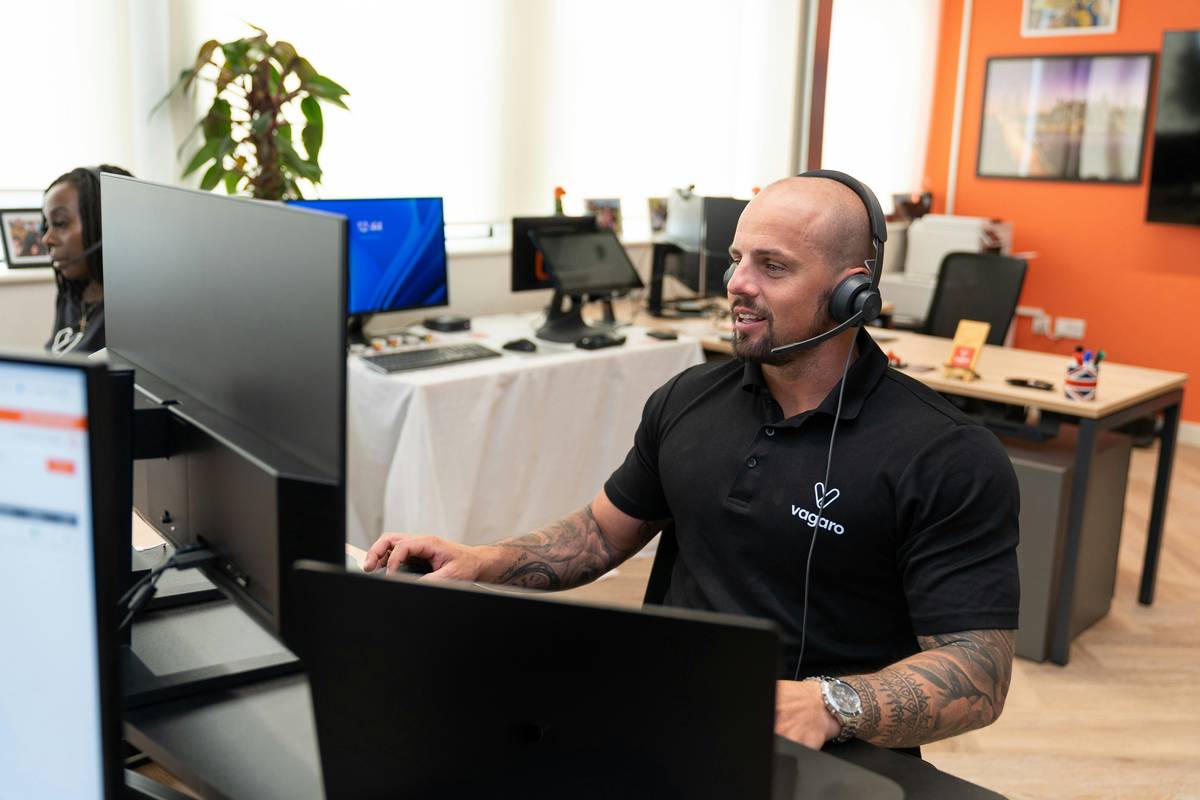
And it’s not just about speed. Integrated calling delivers contextual intelligence: when a lead calls in, your rep sees their deal stage, past emails, support tickets, and contract value—all before saying “hello.” That’s not convenience; it’s competitive advantage.
How to Set Up Salesforce Phone Integration (Without Losing Your Mind)
Optimist You: “Just flip a switch and boom—magic dialer!”
Grumpy You: “Ugh, fine—but only if coffee’s involved and no one asks me to ‘just quickly test the SIP trunk.’”
Truth? Setup is smoother than you think—if you avoid rookie traps. Here’s the battle-tested path:
Step 1: Choose Your Integration Type
You’ve got two paths:
- Native apps (e.g., Aircall for Salesforce, RingCentral for Salesforce): Install via AppExchange, minimal config, ideal for SMBs.
- Open CTI adapters: For enterprise telephony systems (Avaya, Cisco). Requires more setup but offers granular control.
Step 2: Install from Salesforce AppExchange
Go to AppExchange, search your provider (e.g., “Five9”), and click “Get It Now.” Follow OAuth prompts. Takes <5 minutes.
Step 3: Map User Licenses & Permissions
Don’t assign licenses willy-nilly. Only enable reps who *actually make calls*. And lock down permissions—no one needs “Modify All Data” just to click-to-dial.
Step 4: Configure Screen Pop Logic
This is where you personalize the magic. Decide: When a number calls in, should Salesforce pull up Leads, Contacts, or Accounts? Set matching rules (e.g., match on phone number + email).
Step 5: Train—Then Audit
Run a 15-minute Loom demo for your team. Then, spot-check 10 random call logs after Week 1. If notes are vague (“talked about stuff”), retrain.
Best Practices That Actually Move the Needle
Here’s what separates “we have a dialer” from “our dialer prints money”:
- Enable Click-to-Dial Everywhere: From Lead lists, Contact records, even Gmail (via Salesforce Inbox). Reduce friction = more dials.
- Auto-Log Every Call: No opt-in. Every call becomes a Task with duration, direction, and recording link (if enabled).
- Sync Call Recordings Securely: Store recordings as Files linked to the Contact—not in Dropbox. Ensures compliance + easy access.
- Build Dialer-Based Workflows: Example: If a lead isn’t called within 5 minutes of form submission, auto-assign to next available rep.
- Track Call Metrics in Reports: Measure connect rate, avg. call length, and post-call activity. Tie to conversion rates.
And now—the terrible tip disclaimer:
“Just let reps use their personal cell phones and type notes later.”
—The fastest way to kill data integrity, violate compliance, and burn out your team.
Real Results: What Top Teams Are Doing Right
**Case Study: B2B SaaS Scale-Up (200 Employees)**
Challenge: 40-person SDR team wasting 10+ hrs/week on manual logging.
Solution: Implemented Aircall + Salesforce integration with auto-screen pops and disposition tagging.
Result: 22% increase in qualified meetings, 3.1 hrs/rep/week saved, forecast accuracy up to 91% in Q3.
**Case Study: Healthcare Tech Vendor**
Challenge: Needed HIPAA-compliant calling with full audit trail.
Solution: Deployed Five9 with encrypted call logging and custom disposition codes for patient consent.
Result: Passed SOC 2 audit with zero findings related to communication logs; sales cycle shortened by 11 days.
Salesforce Phone Integration FAQs
Does Salesforce have a built-in phone system?
No—but it integrates deeply with dozens of cloud phone providers via CTI. Think of Salesforce as the brain; your VoIP provider is the voice.
Is phone integration expensive?
Most AppExchange dialers start at $30/user/month (e.g., Aircall), plus your VoIP costs. ROI kicks in fast: saving 3 hrs/rep/week = ~$10K/year/rep in recovered selling time.
Can I record calls with Salesforce integration?
Yes—if your telephony provider supports it and you comply with two-party consent laws (like in California). Recordings attach automatically to Contact records.
What about mobile?
Top integrations offer iOS/Android apps that sync calls back to Salesforce. No more “I’ll log it later” ghosting.
Will this work with Salesforce Lightning?
Absolutely. All major AppExchange dialers are Lightning-ready. Avoid legacy Classic-only tools.
Conclusion
Salesforce phone integration isn’t about tech for tech’s sake—it’s about removing friction so your team can sell smarter, faster, and with full context. From automated logging to intelligent screen pops, it turns your CRM from a passive database into an active revenue cockpit.
If you’re still on the fence, ask yourself: Can you afford to lose another lead because someone couldn’t dial fast enough? Didn’t think so.
Now go plug that gap. Your quota will thank you.
Like a 2000s iPod Nano—small, sleek, and always ready to dial your next big win.
Call logs clean,
CRM sings with every ring—
Revenue takes flight.